AI-Designed, Human-Fixed: Make AI Files Laser-Ready

Laser cut & CNC file designer since 2019
· Updated · 12 min read
tutorial ai design file repair
AI-Designed, Human-Fixed: Turning AI-Generated Art Into Cut-Ready Laser Files
AI image tools keep promising that design is now effortless. Type a sentence, get a laser project. xTool just launched Atomm as an “AI Creation Suite” for makers — describe what you want, refine it in plain language, and make files “without needing extensive design experience.” Sounds like the design bottleneck is solved forever.
Here’s the part nobody puts in the headline — and it’s straight from xTool’s own press release: “standard AI-generated images were useless for laser cutting, printing, or engraving.” That’s the company’s own admission. Even xTool’s official demo video of their AI workflow ends with a telling line: “AI helps you start. You still decide what the final design becomes.” In the video, the human does the machine-ready step — outlining the artwork, adding the hanging loop, merging layers, exporting — not the AI.
I’ve spent years fixing files other people generated, traced, and hoped for the best with. AI output is just the newest source of the same old problem: a file that looks beautiful on screen and fails on the machine. The laser doesn’t care how pretty the picture is. It cares about closed paths, single lines, and real dimensions. So here’s my full workflow — every step verified against real tutorials and real cutters, not marketing copy — for turning AI-generated art into files that actually cut.
What AI actually hands you (and why it fails)
Before the fix, understand the failure. AI-generated files fail in ways that are specific to how AI “draws”:
1. It has no concept of physical logic. A maker couple documented this perfectly in a September 2026 video: they used AI to generate SVG files for laser-cut wooden organizers that hang on pegboard. The result? “Pieces didn’t fit. Measurements were wrong. Tabs and slots weren’t where they needed to be.” Re-prompting didn’t fix it — the AI “kept confidently giving me another file that was still wrong,” and every correction created new problems. Their conclusion is the thesis of this whole article: using AI doesn’t mean you get to stop thinking. Knowing when the AI is wrong is the real skill.
2. It gives you pictures, not cut geometry. AI image generators output filled, shaded, textured artwork. A laser cutter needs something completely different: closed vector contours defined as thin strokes. Shading becomes thousands of meaningless paths. Gradients become blobs. It’s decoration, not engineering.
3. It’s full of path garbage. Sketchy double-drawn strokes, open paths that never close, overlapping lines, stray nodes, tiny fragments, decorative hairlines too thin to survive a beam. One laser maker’s rule of thumb says it best: any line in your drawing will be cut. AI draws hundreds of lines that were never meant to be cut.
4. It knows nothing about your machine. As one laser-cutting checklist puts it: “no visual generator knows the kerf, power, focus, or minimum bridge width of every machine and stock.” AI doesn’t know that your cut line removes 0.1–0.2 mm of material per side, or that a floating “island” in the design will just fall out of the sheet, or that a 0.3 mm bridge will snap or burn away. The human owns material physics. Always.
So AI is a brilliant starting sketch. It is never the finished file. Here’s how I bridge that gap.
Step 1: Prompt for laser-clean output
Garbage in, garbage out — so start with the cleanest possible source. When generating art you intend to cut, prompt for flat black line art on a plain white background, high contrast, no shading, no gradients, no texture. Think coloring-book page, not oil painting. A trace tool’s job is to find edges; shading and texture are edges that don’t exist in the real design, and every one of them becomes junk geometry you’ll have to delete later.
Step 2: Prep the raster before you trace it
This is the step most people skip, and it’s the difference between a 10-minute cleanup and a two-hour one. The verified rule from professional vectorization tutorials: pre-simplify the raster — the cleaner the source image, the cleaner the vector.
- Remove the background first. Use an auto background remover or your editor’s subject-selection tool. Tracing a busy background means tracing garbage.
- Reduce it to ~2 colors. Posterize the image down to two colors, or push Hue/Saturation and Levels until it’s stark black and white. You want hard edges, not soft transitions.
- Sharpen the edges. An Unsharp Mask or Poster Edges filter turns soft AI lines into crisp boundaries the tracer can follow.
- Add a black stroke around the subject for clean separation from the background — one tutorial demonstrates this specifically to give the tracer a defined edge.
- Set the resolution first — around 150–300 DPI. Too low and the tracer invents stair-steps; absurdly high just slows everything down.
If the design is complex, consider tracing it in pieces — one maker traces each section of a detailed drawing separately because Illustrator’s tracer over-simplifies complex images when it tries to do them all at once.
Step 3: Trace it with the right settings
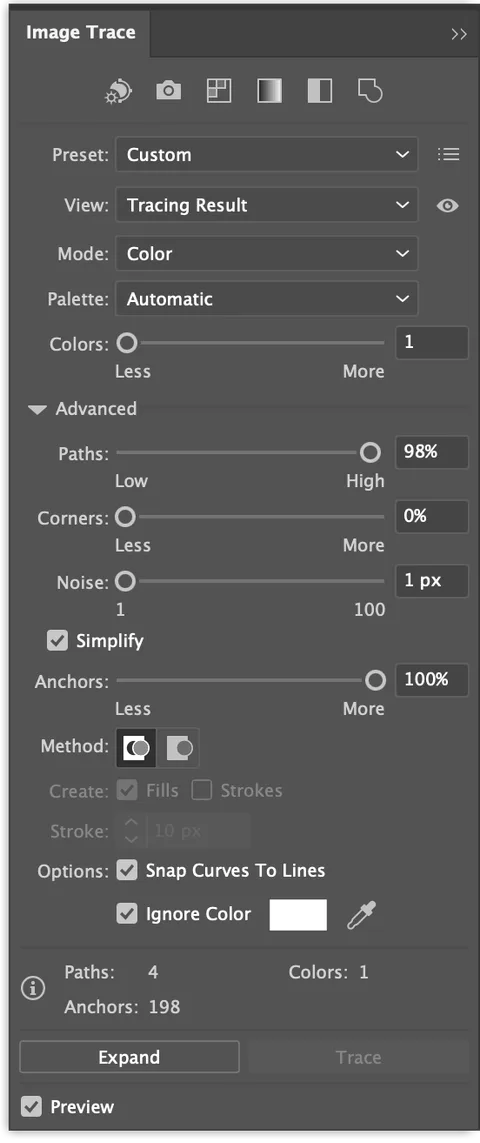
In Illustrator (Window > Image Trace, with the image selected): for laser-bound art, the presets that matter are Black and White Logo, Line Art, Silhouette, and Outline — Outline works best on logo-style graphics. Then tune:
- Threshold — the black/white cutoff. Higher threshold gives thicker lines. Adjust until the design reads clearly.
- Noise — low gives a cleaner but less detailed result; high gives more detail but messier geometry. Start low.
- Paths — controls how closely the trace follows the image. Lower = more accurate fit; higher = looser.
- Corners — high keeps more corners; low rounds them off.
- Overlapping vs. Abutting — this one bites people. In Overlapping mode, stacked shapes can leave holes and gaps. The verified fix: Object > Expand, double-click into the vector, grab the problem path with the Direct Selection tool (A), and stretch it over the gap. Or avoid it entirely: Abutting mode arranges shapes like puzzle pieces with no gaps — and removing the white background block only works in Abutting mode.
- Judge your settings in the outline view modes (result with outlines / outlines only) — that’s where path accuracy shows.
- Like your settings? Save them as a custom preset so every AI trace starts from a known-good baseline. And if a trace goes wrong, Object > Image Trace > Release backs out cleanly.
In Inkscape (free — Path > Trace Bitmap): start with single-scan Brightness Cutoff, then tune Threshold, and use the Speckles, Smooth corners, and Optimize options to clean the result. For cut contours specifically, the Edge Detection mode generates outlines from the image — that’s your cut line. Export to SVG when done.
Step 4: The human-fixed cleanup (the core of the job)
The trace gives you editable vectors. Now you make them cut vectors. Every one of these steps is demonstrated in real tutorials:
- Expand the trace (Object > Expand) so you’re working with real paths, not a live trace effect.
- Delete the background shapes. With the Direct Selection tool (A), click one white shape, then Select > Same > Fill Color, and delete them all at once.
- Turn fills into cut lines. Select the remaining black shapes, add a thin stroke, and delete the fill. The laser follows strokes — remember, any line in your drawing will be cut.
- Expand strokes and clean the anchor points. AI-traced art is full of messy, doubled anchor points; this pass is mandatory, not optional — one tutorial creator notes that raw AI output gets rejected from stock sites specifically for having artifacts, and cleanup is what makes it production-ready.
- Simplify. Use the Simplify command to reduce path complexity — a simple shape should never carry thousands of nodes.
- Merge what should be one shape. Use Pathfinder to merge compound shapes that the tracer fragmented.
- Run Path > Clean Up in Illustrator to sweep out stray points and unpainted objects.
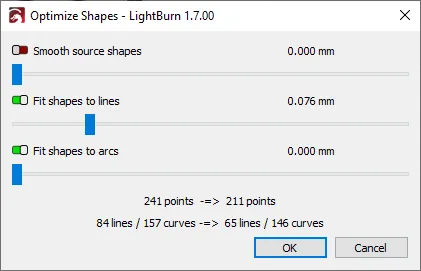
In LightBurn — the software most laser owners actually cut from — there’s a purpose-built tool for exactly this: Edit > Optimize selected shapes (Alt+Shift+O). The official docs say it’s for “cleaning up vectors from Image Tracing.” Ungroup your shapes first (and convert any text or basic shapes to paths), then:
- Smooth source shapes — irons out wavy, jagged traced lines (stronger smoothing costs you small details and sharp corners, so go easy).
- Fit shapes to lines — converts near-line sections into true lines, which cuts node counts and cleans up small overlapping line segments.
- Fit shapes to arcs — converts segmented curves back into true arcs.
The window shows live Points / Lines / Curves counters for the original vs. optimized shapes — so you can watch the node count drop numerically instead of guessing.
Step 5: Preflight — the “truly cut-ready” checklist
Cleanup done, don’t hit start yet. Run this preflight — it’s the AI-specific version of my general file-errors checklist:
- Every intended contour is closed. Open paths mean parts that never separate from the sheet. Check in node/outline view.
- One line per contour. Inspect in wireframe/outline view for hidden duplicates — AI traces love stacking identical lines, and a doubled line gets cut twice: charred edges, widened kerf.
- Score marks are single center paths, not outlined shapes — an outlined shape gets scored twice.
- Cut, score, and engrave are separated into named layers or colors your software can map.
- Connect floating islands with bridges so the design stays one piece, and simplify hairline slivers that will burn away.
- Verify dimensions after import. Keep units in mm, allow roughly 0.1–0.15 mm tolerance on parts that must assemble, and draw cut lines as thin strokes (≤0.1 mm), not fills.
Then test-cut on scrap. A fix you haven’t cut is a theory, not a fix.
Step 6: When the design itself is wrong, fix the physics — not the prompt
Here’s where the Beyond Yet story earns its place. Their AI-generated organizer failed on physical logic — wrong measurements, misplaced tabs and slots — and re-prompting just produced new errors. What finally worked:
- Isolate one problem at a time.
- Physically mark the failed pieces.
- Hand-draw the corrections.
- Photograph the corrected pieces.
- Feed the photos back to the AI as visual feedback.
- Re-test the cut.
AI can iterate on a picture. It cannot do joinery. Tabs, slots, finger joints, and press fits live in the world of calipers and kerf, not pixels — this is exactly the engineering I break down in my tab-and-slot desktop organizer case study, where every slot is sized for real measured material, not for how the drawing looks. If your AI design has interlocking parts, expect to own the dimensions yourself. The AI draws; you engineer.
Do it yourself, or hand it to someone?
Be honest about which column you’re in:
DIY with the workflow above: flat single-piece designs, engraving art, ornaments, keychains, wall art — anything where the geometry is decorative and the dimensions don’t have to interlock. If you enjoy the cleanup process, Steps 1–5 will get you there.
Hand it to a professional: parametric products, boxes with finger joints, anything with tabs and slots that must fit, or AI files so tangled that cleanup takes longer than a redraw. If you’re spending your third evening fighting the same file, the file isn’t the problem anymore — the process is. Here’s what it actually costs to have a laser-cut design done right, and what to send so you get an accurate quote.
And if your file problems aren’t AI-specific — doubled lines from a marketplace purchase, mystery scaling, layers in chaos — my companion guide covers the seven most common reasons a laser cut file won’t cut, and how to fix each one.
FAQ
Can I laser cut an AI-generated image directly? Not for cutting. The laser can engrave a raster image (that’s just dots), but cutting needs true vector paths — closed contours the beam can follow. An AI image must be traced and cleaned first (Steps 2–4 above).
What kind of AI art traces best for laser cutting? High-contrast black line art on a white background — the simpler, the better. Ask the generator for flat line art with no shading or gradients, and prep the raster before tracing. Photorealistic AI art traces into thousands of junk paths.
Is xTool Atomm’s AI output really laser-ready? Closer than a generic image generator — it has vectorization, contour optimization, and layer separation built in. But even xTool’s own demo video shows a human doing the machine-ready step, and their press release admits standard AI images were “useless for laser cutting.” Treat any AI output as a starting sketch, and preflight it.
Why does my traced AI file have thousands of nodes? Because the tracer followed every wobble in the AI’s sketchy strokes. Expand the trace, then Simplify in Illustrator or run LightBurn’s Optimize Selected Shapes (Alt+Shift+O) and watch the node counter drop. A clean simple shape needs dozens of nodes, not thousands.
My AI design has tabs and slots that don’t fit. Why? Because no image generator knows your kerf, your material’s real thickness, or how a press fit works. That’s engineering, not drawing — measure your material, size the joints yourself (or have someone do it), and test-cut before the production run.
AI draws. You engineer.
The AI era didn’t remove the designer — it removed the blank page. Starting from a generated sketch instead of an empty artboard is a genuine gift, and tools like Atomm are making the starting point better every month. But the distance between “a nice picture” and “a file that cuts right the first time” is still crossed the old-fashioned way: clean traces, honest paths, verified dimensions, and a test cut on scrap.
That’s the human part. It’s also the part worth paying for. If you’d rather skip straight to a file that works, send it over — tell me your material and machine, and you’ll get back closed paths, single lines, and joints sized for reality, not for the preview image.
Techniques in this article verified against: xTool’s official Atomm workflow video · Beyond Yet — AI-generated SVG failures & fixes · Habibullah — AI icons to clean vectors in Illustrator · Fast and Loose — Illustrator Image Trace for laser · LasrFocus — Inkscape Trace Bitmap for laser cutting · Solopress Image Trace tutorial & transcript · LightBurn official docs — Optimize Selected Shapes