How to Design for Laser Cutting: A Step-by-Step Guide

Laser cut & CNC file designer since 2019
· Updated · 8 min read
tutorial file preparation laser cutting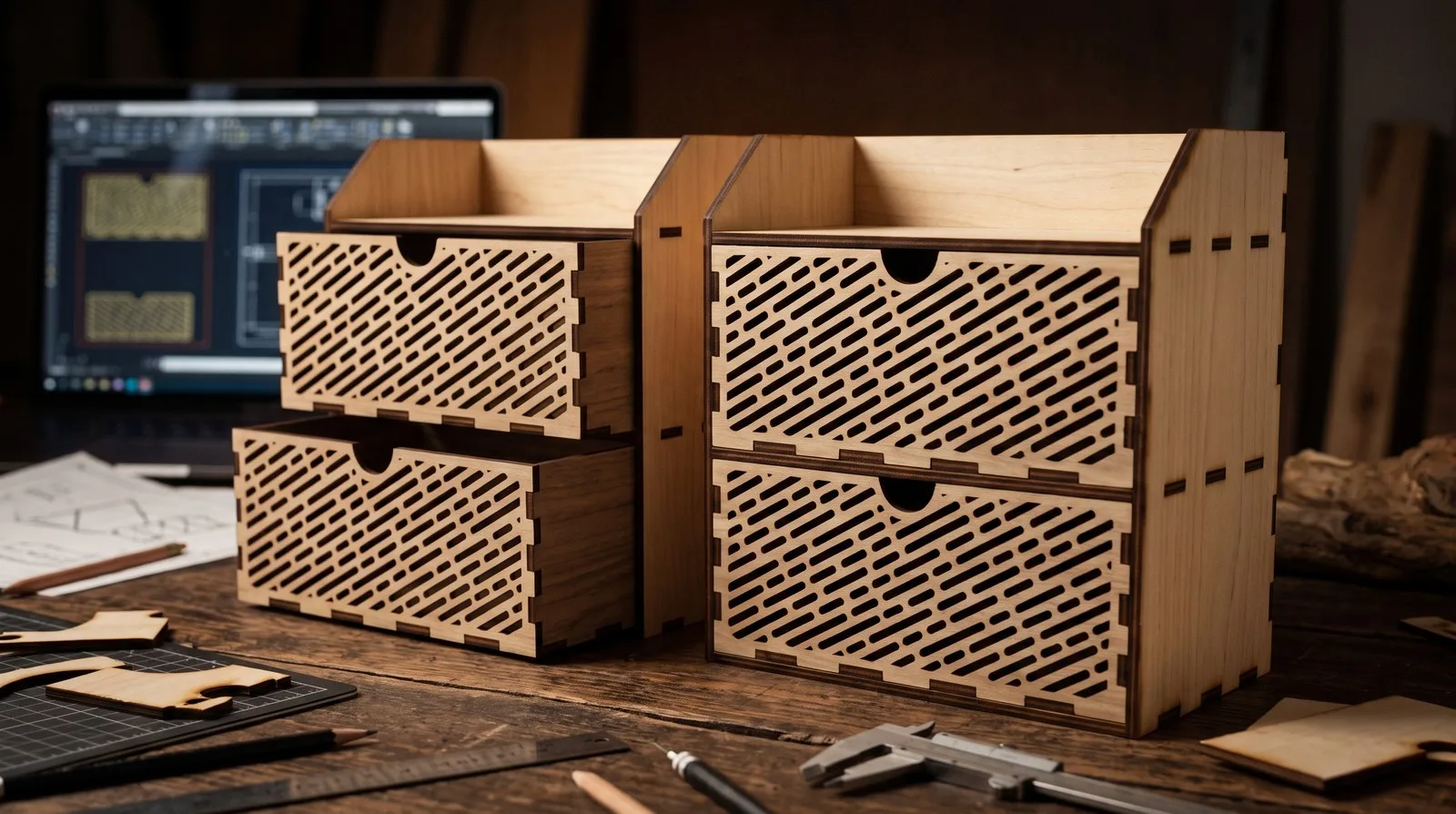
How to Design for Laser Cutting: A Step-by-Step Guide
Most laser cutting problems are not machine problems. They’re file problems that only show up once the machine is running: a line that cuts twice, the centre of an “O” dropping out onto the bed, a joint that will not close no matter how hard you press. I’ve been publishing laser cut designs since 2019 — 400+ of them — and I can tell you the files that cut clean on the first try all share one thing: they were drawn for the machine from the very first line, not decorated afterwards.
This is the order I work in on every commission. It hasn’t changed in years, because the physics hasn’t changed.
Step 1: Decide the material before you draw anything
Material sets every number that follows, so I never open design software until three things are written down:
- Material and thickness, measured with calipers — never read off the label. “3 mm” plywood is routinely 2.7 to 3.2 mm, and I’ve measured both extremes inside a single batch. Every slot in every file I publish is sized for measured thickness, not printed thickness. That is exactly how the tab and slot desktop organizer is drawn — slots sized for the real sheet, so it presses together without glue or force.
- The machine and its bed size. A part that doesn’t fit the bed has to be split, and splitting changes the design — joints, grain direction, the lot. Find out now, not after you’ve drawn forty parts.
- What the edges should look like. A CO₂ laser leaves a dark edge on wood and a polished edge on cast acrylic. If the edge will show in the finished piece, it’s part of the design, not an accident.
If you’re unsure which material suits the product, choosing material for laser cut products covers the trade-offs.
Step 2: Set up the document at real size
Work in millimetres at 1:1 scale, and set the artboard to the size of your material sheet so you can see what actually fits. This sounds obvious; nearly everyone gets it wrong once.
Scaling a finished design at the end is where joints die. A 3 mm slot scaled by 110% becomes a 3.3 mm slot, and your 3 mm plywood rattles in it. A 50 mm part scaled down 10% keeps looking fine on screen while every press-fit in it quietly stops working. Draw at real size, or don’t draw at all.
Step 3: Use colour for operations, not for looks
Every laser program maps line colour to an operation. Pick one convention and never break it — not once, not “just for this detail.” The one I use on all 400+ files:
| Colour | Operation | Typical use |
|---|---|---|
| Red (#FF0000) | Cut | Outer profiles, holes, slots |
| Blue (#0000FF) | Score | Fold lines, fine line detail |
| Black fill (#000000) | Engrave | Text, images, filled areas |
Put each operation on its own layer too. When a file arrives at a different machine, the operator reassigns layers in seconds instead of hunting through ten thousand paths. Future you — opening this file in two years — will be grateful as well.
Step 4: Draw cut lines as clean, closed paths
A cut line should be a single closed path with no overlaps. Three things I check on every file before it leaves my desk:
- No duplicate lines. Two identical lines stacked on each other cut twice, burn the edge and widen the kerf. The file looks extra-correct; the cut looks terrible. Most software can select and delete duplicates in one pass — do it.
- No open paths on cut shapes. An open path still cuts, but it leaves a gap, and the part stays attached to the sheet. Zoom to the corners. Every one of them.
- Shared edges drawn once. When two parts sit side by side, they can share a single cut line instead of each having their own. It saves machine time and gives a cleaner edge on both parts.
The mistake I see most in files sent to me for repair: all three problems in the same file. Fix them in this order and re-check — duplicates first, because they hide the other two.
Step 5: Watch the minimum feature size
The beam burns away material, so very small features simply disappear — not “look rough,” disappear. As a working rule on wood:
- Keep solid bridges and strips at least 1.5× the material thickness wide, or they char and snap when you lift the part.
- Keep holes no smaller than the material thickness in diameter. A 2 mm hole in 3 mm ply is a scorch mark, not a hole.
- Keep text for cutting above about 6 mm cap height, and use a stencil-style font or add bridges so the centres of letters like O, A and B don’t fall out onto the bed.
Anything finer than this? Engrave it instead of cutting it. Engraving has no minimum feature size worth worrying about, and the detail looks sharper anyway.
Step 6: Compensate for kerf in anything that has to fit
The laser removes a channel of material — the kerf — usually 0.1 to 0.3 mm on wood. Joints drawn at exactly the material thickness end up loose, every time. There is no exception to this; it’s geometry, not opinion.
The method: measure your kerf with a test cut, then offset slots inward and tabs outward by that amount. A concrete example from my own files — 3.10 mm measured plywood, 0.16 mm kerf, 0.08 mm of interference for a firm press fit: the slot gets drawn at 2.86 mm. The laser adds the kerf back as it cuts, the finished opening lands at 3.02 mm, and the joint snaps together and stays there. The full method is in kerf allowance: why your joints don’t fit.
If your file has no joints — a flat sign, an ornament — you can skip this step. If it has even one slot, you can’t.
Step 7: Nest the parts and order the cuts
Arrange parts to waste as little material as possible, leaving about 2–3 mm between them. Tight nesting saves money; parts nested too tightly trap heat and scorch.
Then order the operations: inner shapes cut before outer ones. If the outer profile cuts first, the part can drop or shift a fraction of a millimetre before its holes are finished — and a shifted hole is a ruined part. Most laser software has an “inner first” option; turn it on and leave it on.
Step 8: Export in the right format, then test
Export as SVG for Glowforge, xTool and most hobby software, and DXF for industrial machines and CAD. Then check the exported file at 100% scale before sending it anywhere — some programs quietly change the size on export, and a file that was perfect in CorelDRAW can land 25.4× off in another program. SVG or DXF? explains which format breaks how.
Then — and this is the step amateurs skip — cut one test piece, on the real material, before you cut ten. I test-cut every file I publish, including the 400+ on my marketplaces. A test cut costs minutes and a scrap offcut. A failed production run costs the sheet and the deadline. This is the cheapest insurance in the workshop.
A quick pre-cut checklist
- Document in millimetres, 1:1 scale
- Cut, score and engrave on separate colours and layers
- No duplicate lines, no open cut paths
- Bridges and holes above the minimum size
- Kerf compensated on every joint
- Inner shapes cut first
- Exported file checked at 100%
- One test cut on the real material
Questions
What software is best for designing laser cut files?
Any vector program works. Inkscape is free and capable, Adobe Illustrator and CorelDRAW are common in production — I draw everything in CorelDRAW — and Fusion 360 suits parts with precise mechanical fits. LightBurn is excellent for running the machine and for small edits, but most people draw elsewhere and import.
Can I laser cut a JPG or PNG?
You can engrave one, but you cannot cut one. Cutting needs vector paths. A picture has to be traced into clean vectors first — see how to turn a picture into a laser cut file. And be warned: an auto-traced JPG is the single most common “file” I get asked to repair. It usually needs redrawing, not fixing.
How long does it take to design a laser cut file?
A flat sign or ornament can take an hour or two. A box with fitted joints, a lamp or a layered piece takes considerably longer — mostly in test cutting and adjusting fit, not in drawing. Anyone who quotes you two hours for a forty-part lamp is selling you a drawing, not a file.
What stroke weight should cut lines be?
It doesn’t matter for the laser — only the path centreline counts. But set cut lines to hairline (0.001 inch / 0.025 mm) anyway: it’s the convention every laser program recognises, and it stops you mistaking a thick decorative stroke for a cut line six months later.
Should I design in inches or millimetres?
Millimetres. The entire laser world — kerf values, material thicknesses, machine beds — runs in metric, and designing in inches then converting is how the classic 25.4× scale disaster happens. If a client sends inches, convert at the start, not at the end.
Rather have it done properly the first time? Read what to send a designer, or go straight ahead: I design custom laser cut files drawn for your material and your machine, and repair files that won’t cut. Tell me about the project.