Tab-and-Slot Desktop Organizer SVG: A Glue-Less Case Study

Laser cut & CNC file designer since 2019
· Updated · 9 min read
case study joints birch plywood laser cutting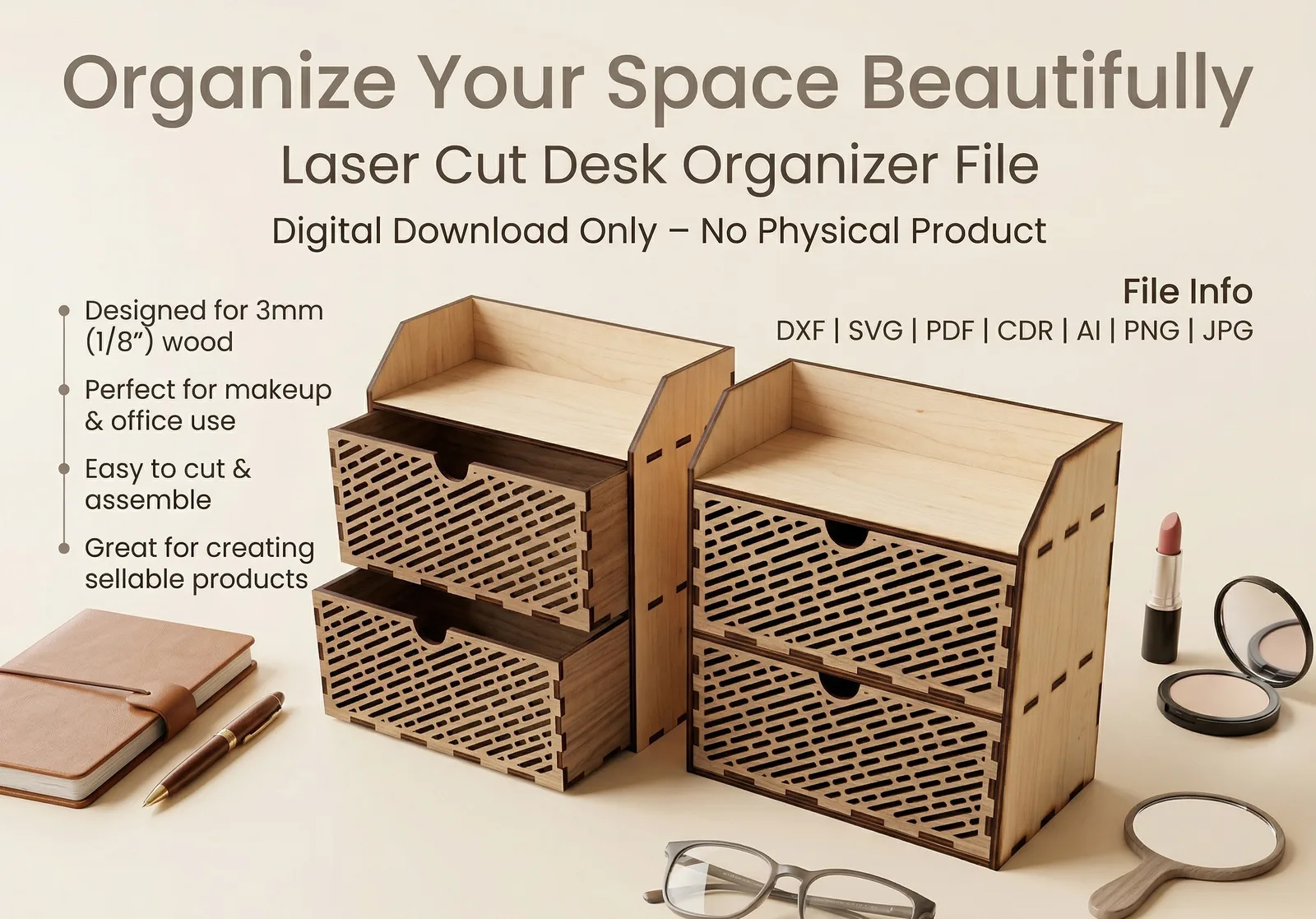
You buy a laser cut file, run the job, and the tabs won’t seat. Or they seat, then drop straight back out. My tab-and-slot desktop organizer SVG was built to end that problem. It goes together in 3mm birch plywood with no glue at all.
Glue is where a bad file hides. It fills the gaps the designer left, stains clean birch, and turns a quick build into an overnight wait with clamps.
That messy, glue-heavy assembly is the biggest pain point I’ve noticed among buyers of digital files. So here is the full case study: the material, the software, the tolerance technique, and the file decisions behind clean, burn-free edges straight off the laser bed.
Why so many laser cut files end in glue
Most fit problems aren’t the buyer’s fault. They’re drawn into the file before it’s ever sold.
These are the faults I run into most when a file won’t go together:
- Slots drawn for a perfect 3.00 mm sheet. Real sheets rarely measure that, and the file never accounts for it.
- No kerf compensation. The beam burns away material on every line, so slots open up and tabs shrink.
- Slots too close to an edge. The thin bridge of wood beside the slot cracks the moment a tab goes in.
- Duplicate lines. The laser cuts the same edge twice, and it comes out black and slightly wider.
Glue covers all four. It fixes none of them.
On a laser cut office organizer that matters more than usual, because the joints are on show. Every gap and every smear of dried glue sits on someone’s desk for years.
Case study: the tab-and-slot desktop organizer SVG
I’ve been publishing laser cut designs since 2019, and in my recent projects I’ve worked almost entirely in 3mm birch plywood. For this organizer I set three goals:
- Glue-less assembly. Hand pressure only. No clamps, no drying time.
- A structurally robust build. It has to stay square when it’s full and gets pushed around a desk.
- Clean laser edges. Burn-free and ready to assemble straight off the laser bed.
Why 3mm birch plywood
Birch ply is a stack of thin veneers, each turned 90 degrees to the one below. That cross-grain build makes small tabs strong in every direction. Solid wood of the same thickness would split along the grain.
Birch also holds a friction fit. MDF fibres crush under a press fit and the joint loosens; birch keeps its grip.
And the pale face makes a clean cut look sharp, which matters when the edges are part of the design. My guide to choosing laser cutting materials covers how other sheets change a design.
Drawing the joints in CorelDRAW Technical Suite 2024
Every part was drawn in CorelDRAW Technical Suite 2024. The reason is boring but important: numeric control. A slot width is a typed number, accurate to a hundredth of a millimetre, not a line nudged until it looks right.
The same drawing exports cleanly to SVG and DXF. The native CorelDRAW vector files (CDR) stay fully editable, so adding an engraved logo or a name takes a minute.
A full 3D mockup in SketchUp before the first cut
Next, the whole organizer went together as a 3D mockup in SketchUp, before any plywood went near the laser. A mockup answers three questions a flat drawing can’t:
- Does every tab land on its slot, at the right height?
- Is there an order in which the parts can physically go together?
- Does it look right at real scale, on a real desk?
The second question is the sneaky one. A layout that only works if two panels pass through each other looks perfectly fine in 2D.
Fixing a clash in SketchUp takes minutes. Finding it on the laser bed costs a sheet.
The tolerance technique behind glue-less assembly
This is where glue-less assembly is won or lost.
A press fit needs the slot to finish a hair narrower than the plywood going into it. Too wide, and the tab rattles. Too narrow, and the part splits.
Three numbers decide the fit:
- The real sheet thickness. Sheets sold as 3mm birch plywood often measure anywhere from about 2.8 to 3.2 mm, and thickness can drift across a single sheet. Measure it. Don’t trust the label.
- Your kerf. The width of wood the beam burns away. On 3mm ply with a CO₂ laser it usually lands between 0.15 and 0.25 mm. My kerf allowance guide shows how to measure yours.
- The interference. How much tighter than a zero-gap fit you want. In birch, about half a kerf gives a firm push fit.
The slot is then drawn at sheet thickness − kerf − interference. The laser adds the kerf back as it cuts, and the finished slot comes out just tight enough.
Here’s a worked example. Your numbers will differ, which is exactly the point.
| Step | Value |
|---|---|
| Sheet thickness (calipers) | 3.10 mm |
| Kerf (from a test cut) | 0.16 mm |
| Interference (about ½ kerf) | 0.08 mm |
| Slot width as drawn | 2.86 mm |
| Slot width after cutting | about 3.02 mm |
The 3.10 mm sheet now meets a 3.02 mm opening. That 0.08 mm of interference is what lets the pieces snap together tightly and stay there. The result is a structurally robust organizer without a drop of glue.
One more detail from the bed: the beam cuts a very slightly tapered wall. On most setups the slot is fractionally wider on the face that was up during cutting, so push tabs in from that side and let the joint tighten as it seats.
Clean laser edges start in the file
Burn marks usually get blamed on power settings. Often the file caused them.
Every file I publish has closed paths and no duplicate lines, and those two habits do most of the work. When you look at any laser cut file, check for:
- Duplicate lines. A doubled path is a doubled burn: a charred, wider edge.
- Overloaded curves. Hundreds of tiny nodes make the head slow down and speed up, and every slowdown leaves a darker spot.
- Parts nested too tightly. Thin strips between cuts trap heat and scorch.
- Open paths. The cut never closes, and the part stays attached to the sheet.
The machine handles the rest:
- Air assist on. It clears smoke and flame from the cut and keeps the edge light.
- Masking on the face if you want zero smoke staining.
- Power and speed tested on scrap, so it cuts through cleanly in as few passes as your machine allows. Extra passes darken the edge and widen the kerf.
An honest note: a laser always toasts wood a little. A light tan edge is normal. Black char, sticky residue and a smoky halo on the face are not, and with a clean file and dialled-in settings you shouldn’t see them.
How to cut and assemble it without glue
- Measure your sheet in three or four spots with calipers.
- Run a two-part test. Cut the smallest pair of parts that join each other and press them together. Firm thumb pressure is right. If it takes real force, it’s too tight; if it wobbles, it’s too loose.
- Cut inner shapes first. If your software has an inner-shapes-first option (LightBurn does), turn it on so the slots cut while the part is still held by the sheet.
- Mask the face if you want spotless surfaces.
- Assemble on a flat surface. Push each tab in from the face that was up on the bed, square the joint as you go, and seat it with your thumbs or a light tap from a rubber mallet.
- Leave the glue in the drawer. A loose joint means the sheet is thinner than the file expects. Adjust the slots instead.
Friction really is enough. Wooden mechanical model kits have worked this way for years: hundreds of flat parts, held together by nothing but precise fits.
Specs and file formats
At a glance:
- Product: tab-and-slot desktop organizer, laser cut file
- Material: 3mm birch plywood
- Joinery: friction-fit tabs and slots, glue-less assembly
- Designed in: CorelDRAW Technical Suite 2024, with a SketchUp 3D mockup
- Formats: SVG, DXF, CDR, AI, EPS, PDF and PNG
- File quality: closed paths, no duplicate lines, test-cut before release
Which format to use:
- SVG for Glowforge, xTool Creative Space and LightBurn.
- DXF patterns for CAD and CAM software, where units need to be unambiguous.
- CDR, the native CorelDRAW vector files, when you want to edit the design.
Check the dimensions after every import. A file that measures right in one program can land at the wrong scale in another. My guide to SVG and DXF file formats explains why.
Quick answers
Will it cut on a diode laser?
Yes, if your diode cuts 3mm birch plywood cleanly. Diode and CO₂ machines leave different kerf widths, so run the two-part test before you cut the whole sheet.
Can I mill it on a CNC router?
The DXF opens in any CAM software, but the file is drawn for a laser. A round bit can’t cut the sharp inside corners of a laser slot, so add dog-bone reliefs and use a bit narrower than the slot.
What if my plywood isn’t exactly 3mm?
Measure it, then adjust the slot widths by the difference. Even 0.1 to 0.2 mm changes how a press fit feels. Never scale the whole file: that resizes the organizer along with the joints.
Can I sell the organizers I make?
Yes. My files come with a commercial licence, so you can cut and sell the organizer from your Etsy shop, market stall or workshop. Check the exact terms on the storefront you buy from, since each marketplace words its licence differently.
Download the glue-less organizer
Cut it. Press it together. Fill it. No clamps, no drying time, no glue stains on the birch.
Download the tab-and-slot desktop organizer SVG from my storefronts. The DXF and CDR files come in the same download, along with a commercial licence for what you make.
Then have a look around. My portfolio holds 400+ premium SVG, DXF and CDR designs, from business card holders to wall shelves, pendant lamps and gift boxes, all drawn to cut right the first time.