SVG or DXF? Choosing the Right Laser Cut File Format
Laser cut & CNC file designer since 2019
· Updated · 3 min read
file formats laser cutting svg dxf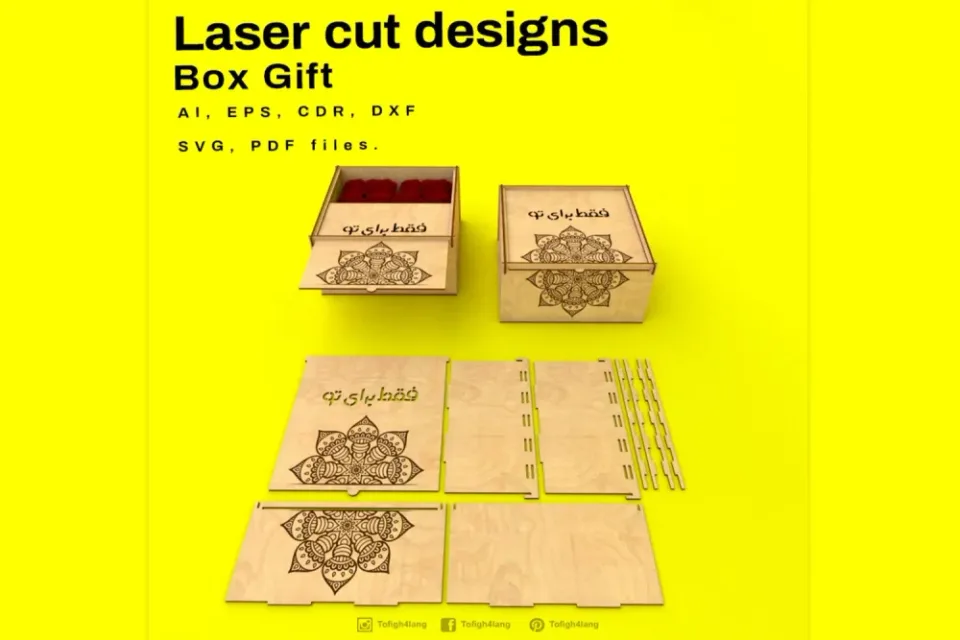
Every laser cut file I publish ships as SVG, DXF, CDR, AI, EPS, PDF and PNG. That is not padding — it is an admission that the software people run varies wildly, and each format arrives at the machine with different strengths and different failure modes.
Here is how to choose.
SVG — the safe default for hobby lasers
If you run Glowforge, xTool Creative Space, LightBurn or almost any browser-based cutting tool, use the SVG. It carries curves as real Bézier geometry, supports separate layers for cut and engrave, and encodes colour reliably — which matters, because most workflows map colour to operation.
Its one real weakness is units. SVG stores coordinates in user units, and different programs disagree about how those map to millimetres. This is why a file that measures 200 mm in Illustrator can land on the bed at 264 mm. Always confirm the dimensions after import, before you cut.
DXF — the right answer for CNC
For CNC routers, ArtCAM, Fusion, VCarve and most industrial CAM software, DXF is the better choice. It was built for CAD, so it is unambiguous about units, and it preserves true arcs and circles rather than approximating them with Bézier segments.
The trade-off is that DXF carries no styling. There are no colours and no fills — only geometry on layers. Your cut and engrave separation has to live in the layer names, which is exactly how I structure the DXF files I deliver.
AI, EPS and CDR — for editing, not for cutting
Use these when you intend to modify the design: change dimensions, swap an engraved monogram, combine two products into one sheet. Illustrator and CorelDRAW both handle their native formats with full fidelity.
Do not send them straight to a laser if you can avoid it. Both formats can contain live text, effects and clipping masks that the cutting software will either silently ignore or rasterise into something unrecognisable.
PDF — the reliable fallback
PDF preserves vectors and, unlike SVG, is genuinely strict about physical dimensions. A 200 mm box in a PDF is 200 mm everywhere. When someone tells me their SVG imported at the wrong scale, the PDF is what I tell them to try next.
PNG is not a cut file
A PNG has no paths. The laser cannot follow a pixel. PNGs are useful for one thing only — raster engraving a photograph or texture — and even then you want high resolution and good contrast.
If a marketplace sells you a “laser cut file” that turns out to be a PNG of a design, you have been sold a picture, not a file.
Four rules that prevent most disasters
- Check dimensions after every import. Every time, in every program.
- Convert text to outlines before exporting. A font you own is not a font your client owns.
- Keep cut and engrave on separate layers, named clearly, in every format you export.
- Weld overlapping shapes. Two overlapping rectangles cut as four lines, and the laser will happily burn the shared edge twice.
Related guides: Importing SVG files into Glowforge, xTool and LightBurn · 9 laser cut file errors and how to fix them · How to design for laser cutting
Need a file that opens correctly the first time? Every commission I deliver includes the formats your software actually wants, layered and labelled. Start a project.